
Showing posts with label guide. Show all posts

Saturday, March 1, 2008

Despertar del Cementerio v4 Install and Pandora Battery Creation Guide

I have finally caught up with the masses. I now have a DCv4 memory stick and Pandora battery. I know that I am way behind in creating these but I didn't have a spare battery to use. Anyway, here is a little guide on how I created the memory stick and battery:

Creating Pandora Battery:

I used the BatTool v0.5 for 3.XX to create my Pandora Battery. It is easy to use, reversible, and allows you to dump the eeprom.

  • Connect your PSP to your PC with a USB cable and enable USB mode.
  • Extract the archive and place the "BatTool 0.5 for 3.xx kernel" folder in your GAME folder.
  • Exit USB mode and go to the memory stick under Game in the XMB and run BatTool. There are several menu options, pick the one you want.
  • Assuming you want a Pandora battery for future unbricking/updating then switch you battery over to service mode and then it'll be ready.
note: I dumped my eeprom just in case I had problems in the future.

Installing DCv4:

There are many installers available which will automatically install all the files needed to create a "magic memory stick" but I decided to do it the old fashioned way.

You will need these files:
Here is what DCv4 looks like after extracted:
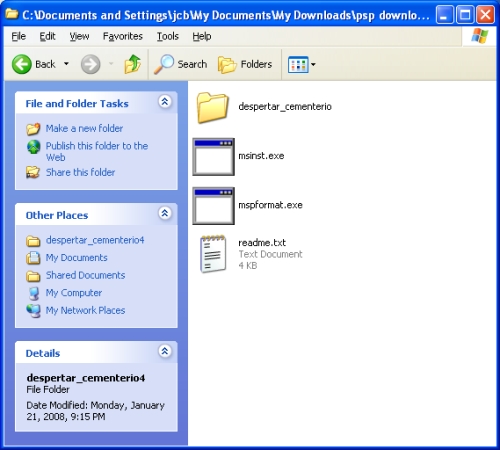


It would be a good idea to follow along with the readme file Dark AleX has provided in DCv4. His "readme" is complete but not as noob friendly as I hope this guide will be.
  • Insert the memory stick you want to install DCv4 into your PSP. We need to format it so go to Settings, System Settings, Format Memory Stick and format it.
  • Next connect your PSP to your PC with the USB cable and enable USB mode.
  • Open a Command Prompt (CP). Drag and drop mspformat.exe into the CP window. Hit the space bar and type the letter of the drive which is your PSP's memory stick and hit enter. It will ask if you want to continue and press y (no space this time).
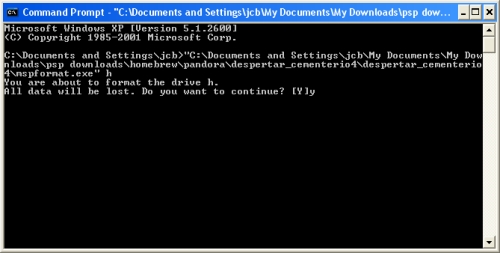
Here is what it looks like:


  • Remove the memory stick, disable USB mode, re-enable USB mode, and re-insert your memory stick.
  • Next create a "PSP" folder on your memory stick. Inside the "PSP" folder, create another folder named "GAME".
  • Copy the despertar_cementerio file into the GAME folder. Also copy the 1.5, 3.40, and 3.80 eboots into the root of the memory stick. Rename the eboots 150.PBP, 340.PBP, and 380.PBP respectively.
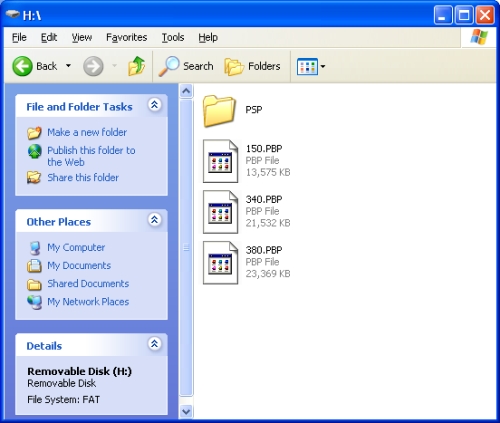
Here's what that looks like:


  • Disable USB mode again and also disable any PTF custom themes you are running on your PSP.
  • Now go to your memory stick under Game and run DCv4. Follow it's directions and after it has completed you will have msipl.bin in the root of your memory stick. Copy this to your PC somewhere you can find it easily, we'll be using it in a second.
  • Open up the Command Prompt again. Drag and drop msinst.exe into the CP window and hit the space bar. Type the letter of your PSP's memory stick again and hit the space bar again. Now drag and drop msipl.bin file into the CP window and hit enter. It will ask if you are sure and type y (no space) and hit enter.
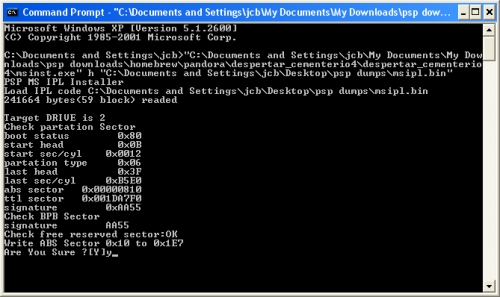
Here it is:


You can delete the 150.PBP and 340.PBP files, they are of no more use. Leave the 380.PBP because it is used when unbricking/updating.

You now have a DCv4 unbricker/updater memory stick.

Using DCv4/Pandora:

If your PSP's power cord is attached then unplug it. Insert the memory stick in which you installed DCv4 then insert the Pandora battery. The PSP will power-on automatically and give you a menu:
  • Press X to install 3.80M33.
  • Press O to install original 3.80
  • Press [] to dump nand to nand-dump.bin. When done, psp will auto shutdown.
  • Press L+R+HOME+START to restore nand from nand-dump.bin
I suggest you do a nand dump and save it to you PC for safe keeping. This is to be used in only dire circumstances/last resort. Restoring the nand from a dump has a possibility of bricking so don't do it unless you absolutely have to.

Hope this guide was helpful.

Thursday, January 24, 2008

FreeRadio Internet Radio Guide

Here is a short guide to help installing and customizing FreePlay's FreeRadio internet radio player.

Download FreeRadio from here. After you unzip the file you will see a "readme" and a folder. Read the readme.txt file. FreePlay wrote it for a reason.

Installation:

Open the folder named "Copy the stuff in this folder into the top folder of your memory stick!". Double click to open it. Then copy the "radio" folder over to your PSP's root directory (ms0:\, ms_root, G:\, etc.). Mine has the green circle around it here:


Copy the "PSP" folder from the download over to the "PSP" folder on your memory stick (circled in red above). It will add the needed files to your memory stick.

That's it. You can close your USB connection and navigate to the network icon on your PSP. You should have a new option: Internet Radio. The included Shoutcast stations FreePlay has included are quite good but if you would like to customize these stations keep reading.

Customizing your Shoutcast Stations
:

Here are the instructions FreePlay has provided in the readme file:

"To customize the list of Shoutcast stations, podcasts, or raw streams, look in the 'radio\personalize' folder. 'MyShoutcast.js', 'MyPodcasts.js', and 'MyStreams.js' contain the lists of Shoutcast stations, podcasts, and raw streams displayed in the portal, as well as instructions for adding your own stuff. You can edit them in Notepad or any other text editor."

That's pretty straight forward but here is a screen capture in case you need help.


Double click "radio", then double click "personalize", and finally you'll see "MyShoutcast.js". I used notepad to open the file and here are the station names and i.d. numbers that Freeplay provided for our listening pleasure:


var shoutcast_stations = new Array(
'2680', '1.FM - Blues',
'6951', '1.FM - The Chillout Lounge',
'2541', '1.FM - Otto\'s Baroque Musick',
'7526', '181.FM - Christmas Mix Channel',
'5835', '181.fm - Kickin\' Country (Today\'s Best Country!)',
'2266', '181.fm - POWER 181',
'1553', '.977 The 80s Channel',
'1025', '.977 The Hitz Channel',
'8751', 'ChroniX Aggression',
'3201', 'DIGITALLY-IMPORTED - Chillout',
'1276', 'DIGITALLY-IMPORTED - Trance, Techno, Hi-NRG',
'1790', 'DIGITALLY-IMPORTED - Vocal Trance',
'3674', 'Drone Zone: Atmospheric ambient space music',
'841', 'Groove Salad: beats and grooves.',
'5067', 'idobi Radio: Music that doesn\'t suck!',
'6445', 'Japan-A-Radio',
'8771', 'Radio Paradise-modern, rock, world, electronica, more',
'333', 'S K Y . F M - 80s, 80s, 80s!',
'1568', 'S K Y . F M - All Hit 70s',
'1403', 'S K Y . F M - Absolutely Smooth Jazz',
'1914', 'S K Y . F M - Classical & Flamenco Guitar',
'2429', 'S K Y . F M - Mostly Classical',
'4977', 'S K Y . F M - New Age',
'8613', 'S K Y . F M - Roots Reggae',
'1677', 'S K Y . F M - The Christmas Channel',
'2207', 'Slow Radio',
'5890', 'SmoothJazz.com',
'9581', 'SmoothLounge.com',
'9036', '[XRM] - Alternative'
);


Notice that there isn't a comma after '[XRM] - Alternative'. That's important, make sure you leave out the last comma if you add or remove stations from your list. Also, if you add a station that has an apostrophe like "181.fm - Kickin' Country (Today's Best Country!)" above; make sure that you include the backslash before it \'.

Here is a list of the top 50 stations, with their i.d. numbers, on Shoutcast from Jan. 22, 2008. The additional five stations, at the end of the list, play a lot of game soundtracks. Thought you might like them.


'3394', 'French Kiss FM',
'4757', 'HOT 108 JAMZ',
'942319', 'HOT FM',
'5635', 'The Alex Jones Show',
'526', 'S K Y . F M - Top Hits Music',
'4253', '181.FM - Classic Country Hits',
'8591', '181.fm - The Buzz-Your Alternative Station',
'8848', 'PulsRadio',
'4870', 'POWERHITZ.COM',
'5427', 'Musik.Main',
'9956', 'FREQUENCE3',
'8303', 'HitzRadio.com',
'5327', 'KQED Public Radio',
'6422', 'Musik.Goldies',
'757', 'Blue FM',
'524', 'TechnoBase.FM',
'4866', 'Discollection-Radio.De',
'2897', 'DIGITALLY-IMPORTED - EuroDance & HiNRG',
'4869', 'SomaFM presents: Indie Pop Rocks',
'320792', 'PJ BeeVBoY For Sodazaa',
'6409', '1.FM - Top 40',
'3654', '1.FM - Bay Smooth Jazz',
'9462', 'Radio ENJOYSTATION.NET',
'1057', 'frisky R a d i o',
'6967', 'DIGITALLY-IMPORTED - Lounge',
'7790', '1.FM - Otto's Classical Musick',
'6201', '1.FM - Dance Hits',
'1187', '1.FM - Channel X',
'6617', 'Angel Fire Radio's Classic Rock&Roll.FM',
'1568', 'S K Y . F M - All Hit 70s',
'2502', 'AM 1710 Antioch Old-time radio',
'706105', 'GCN Network 3 Live Stream',
'3103', '181.fm - Energy 98 - Dance Hits',
'3911', '181.FM - The Beat * #1 For HipHop',
'2916', 'Bassdrive - Music Beyond',
'2762', 'Fusion Radio. The Future of Dance',
'185033', 'Beatles Radio.com',
'4267', 'Musik.JaM',
'2399', 'Secret Agent',
'7963', 'Radio Caraibes FM - Haiti',
'706105', 'GCN Network 3 Live Stream',
'1952', 'Play Classical UK',
'1968', 'FG DJ RADIO',
'8589', 'H A P P Y D A Y - New Age EZ1 Channel',
'2464', 'Musik.eXTreMe',
'5295', 'k a w a i i - r a d i o',
'819988', 'yaxiradio 9275 FMz',
'2086', 'KCRW Music',
'5438', 'Radioseven',
'3392', 'Radio VHR',
'209054', 'Power of the Games',
'369667', 'Final Fantasy XI - RGoNots Linkshell',
'463697', 'All Games Radio',
'4177', 'Radio GOSU: 24/7 Video Game Music',
'3292', 'WoW Radio',


Just add these to the list of Shoutcast stations and save the file. Replace your "MyShoutcast.js" file on your PSP's memory stick with this new file and you'll have a bunch more great stations.

If neither FreePlay's selection of stations, nor mine, has what you want then feel free to head over to Shoutcast.com. Find a station that you want to add and right click on the "Tune In" button. Select the "Copy Link Location" option and inside of your preferred text editor program hit ctrl+V and paste the link into a new document. You will find a number toward the end of the link, that is the station i.d. number. Using the format above ('i.d.number', 'station name',) add this info into the list of Shoutcast stations in the "MyShoutcast.js" file.

Two problems I found:
  • When adding stations, keep only the stations you can't live without because the FreeRadio player starts to lag when you have more than 40 or 50 stations. I believe it is caused by the E.Q. plugin. One thing that helps is to open the "Plugins" folder and rename the "equalizer.plugin" to "equalizer.disabled". FreeRadio will ignore the plugin and the lag is greatly reduced. To re-enable the plugin just rename it back to "equalizer.plugin".
  • AAC and MMS streams are not supported.
These issues are minor and do not detract from the experience.

I hope this guide was helpful. Please enjoy FreePlay's great homebrew internet radio player: FreeRadio.